Once you have your activation code, follow these steps inside the app.
Get the installer for your platform from the download page and install.
This app is unsigned (to avoid the yearly code-signing certificate fee). On Windows, you may see a "Windows protected your PC" prompt. To proceed: click More info, then click Run anyway. The app launches normally after that.
Paste your activation code in the activation window and click activate for lifetime use. After purchase you receive a code by email (our payment provider Paddle emails it automatically). For any issue, email [email protected].
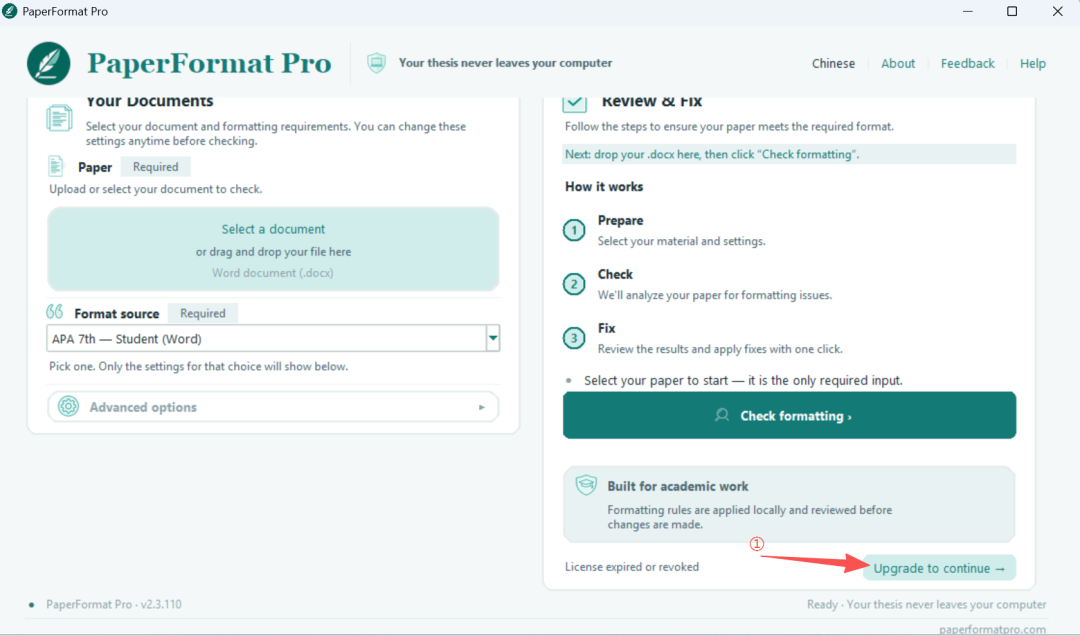
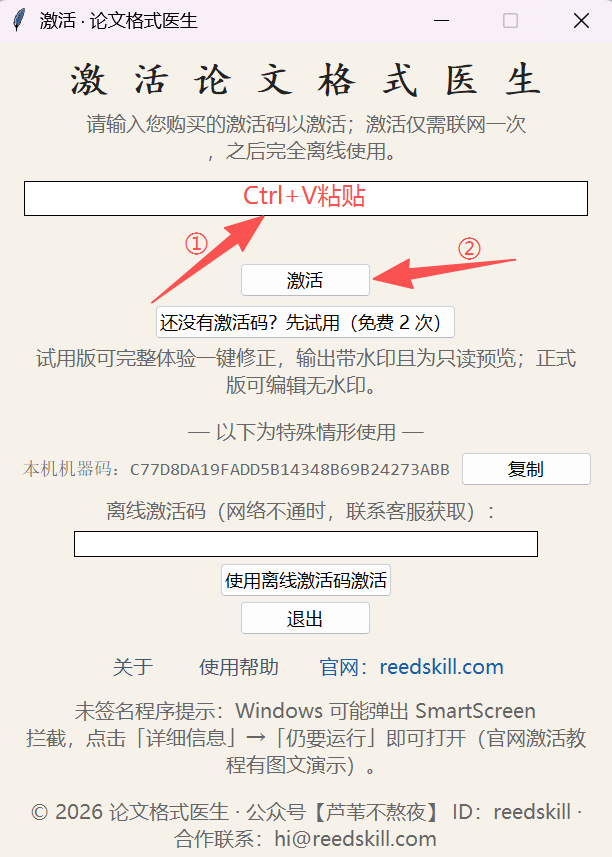
The activation code is per-machine and binds to this device after purchase. For activation issues, email [email protected].
 PaperFormat Pro